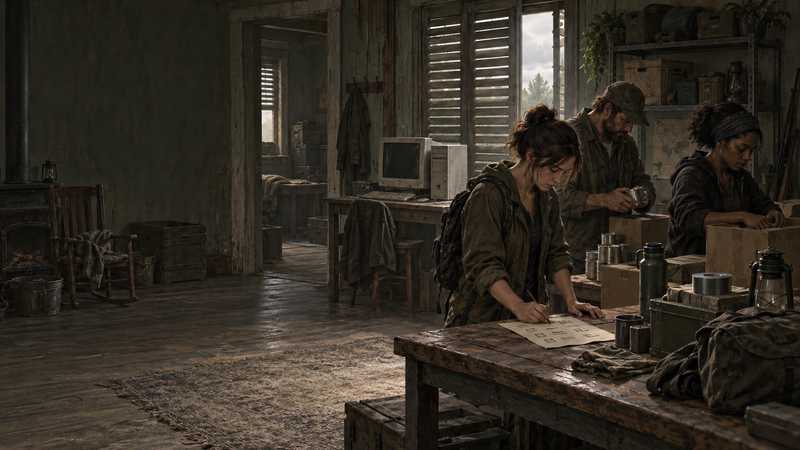

Project Zomboid Server on a Spare PC: Readiness Check
Can a spare PC run a Project Zomboid server? Check its workload, uptime, electricity, and recovery before relying on it for your group.
You will need
- The spare PC and permission to inspect its operating system and hardware
- A representative Project Zomboid world, mod list, and group workload to evaluate
- A plug-in power meter if you want to estimate electricity cost
Yes, a spare PC can be a sensible place to run a Project Zomboid dedicated server, but “it boots” is not a readiness test. Check what the machine can spare, whether it stays reachable while nobody is at the desk, and how you would recover the world if its storage fails. The official game requirements describe a client, not a household server benchmark, so this checklist uses measurements from your own machine instead of a made-up minimum. If you want the broader choice between operating your own machine and renting a server, start with our comparison of managed hosting and running your own server.
Check whether your spare PC fits a Project Zomboid server#
Start with the exact computer you plan to leave running. Record its processor model, installed memory, operating-system version and support status, free storage, drive condition, cooling, and network connection. “Old” is not a specification: two machines of the same age can behave very differently, and the server workload changes with the world, mods, and what players do.
The Project Zomboid Steam page currently lists Windows 10/11 64-bit, a quad-core 2.77 GHz processor, 8 GB RAM, and 10 GB disk among its game client requirements. Those figures are useful context for the PC that runs the game client. They do not say that a dedicated server needs those same resources, nor that a machine meeting them will support a particular group or mod list.
Use the operating system’s built-in system information to identify the parts you actually have. Then check available memory and disk space after the normal background services start. A computer with 8 GB installed does not have all 8 GB free for one process. Likewise, available disk space is not the same as a healthy drive with room for world data, updates, and separate copies.
Write down what you find before making changes. If the operating system is unsupported, the drive reports errors, the computer overheats or shuts down, or the network disconnects under ordinary use, address that problem first. Adding server software cannot fix failing hardware or an unstable connection.
Test the world and mods your group will actually use#
There is no honest one-number answer for how many players an unknown spare PC can handle. A quiet, lightly modified world and a group exploring different areas do not create identical work. The only useful capacity check is a representative test on the machine and configuration you plan to use.
Choose the intended game branch and build with your group before evaluating the PC. The official 42.21 Stable announcement confirms that version was released as Stable on September 28, 2026; that is a dated reference, not a promise that it remains the latest build. Check the current official news and make sure every player, the server, and the selected mods target compatible versions. A server that starts is not proof that every mod works correctly in multiplayer.
Use a disposable world or a copy that you can afford to lose while evaluating. Ask the group to play the way it normally would: join from its intended devices, travel, fight, use the selected mods, and save and reconnect. Observe the server process, available memory, storage activity, temperatures, and disconnects during that session. Note what happened rather than converting one short session into a general player limit.
If the machine becomes unresponsive, the world saves pause for an unacceptable time, or connections fail, reduce one variable at a time—such as background applications or optional mods—and repeat the same scenario. Keep the branch, mod list, duration, and observations with your notes. If you cannot reproduce the group’s real activity, your result is only a preliminary check.
Keep the server available when nobody is at the desk#
A dedicated process still depends on the computer, operating system, power, and home network staying available. Closing a monitor is not the same as putting the whole PC to sleep, and a machine that is available during a short test may still stop after a logout, scheduled update, power interruption, or router restart. If the home address changes, the server can stay powered on but still become hard to reach; our guide to maintaining a server through a changing home IP covers that separate networking issue.
Before inviting players to rely on it, check the settings and behavior you plan to use:
Check display sleep
Turn off only the display and confirm that the server process remains active.
Check system sleep
Verify separately what happens when the computer enters system sleep or hibernation; do not assume the game process keeps accepting connections.
Plan for unattended restarts
Confirm who can sign in and restart the process after an operating-system update or unexpected reboot.
Record ordinary network interruptions
Observe a normal router or internet interruption if one occurs naturally; do not interrupt a valuable session just to manufacture a test.
Verify from another network
From a compatible PC on another network, verify that a player can reach the intended server before describing it as available to the group.
For each check, record the time, what you changed, and what you observed. If the server requires someone at home to wake the computer, sign back in, or restart it, count that as part of the hosting arrangement. A spare machine is not unattended infrastructure simply because nobody is using its keyboard.
Protect the world before making the PC your only server#
Decide what must be recoverable before the group builds a valuable world. Identify the world files, server configuration, player data, and mod list associated with the exact build and server identity you use. Their locations and compatibility can change, so consult the documentation for your current installation rather than copying an old directory list from an unrelated tutorial.
Keep a separate copy that would survive a failure of the server’s main drive. For a consistent copy, stop the server cleanly first, then copy the relevant data to another device or storage location. A second folder on the same disk is convenient, but it is not protection from that disk failing.
Do not call a copy a recovery plan until you have tried it. Use a disposable copy and a separate test location to confirm that you can identify the right world and bring it up as expected. Keep the original untouched during the exercise. This guide does not claim that a backup was restored or that data can be converted between incompatible Project Zomboid builds; a copied folder alone cannot prove either result.
If you would rather not maintain the PC, power, network, and independent copies yourself, consider that a separate operating choice from whether this particular computer passes its readiness checks.
Estimate electricity from your own meter reading#
An unused computer still uses electricity while it runs. Estimate the cost with the machine’s measured average wall draw during the workload you expect, not a wattage copied from another model or the number on its power supply.
Use a plug-in meter to record average watts during a representative session, then apply your electricity rate:
watts ÷ 1,000 × hours per month × price per kWh = estimated electricity costFor example, enter your own measured watts, expected monthly hours, and local utility rate; this guide does not assume a value for any of them. Treat the result as an estimate of electricity only. It does not include a replacement drive, hardware purchase, internet costs, or the time you spend updating and recovering the server.
The broader hosting comparison linked in the opening covers responsibility and total cost. Keep your spare-PC measurement separate from any quoted hosting price: they describe different arrangements and neither proves which one fits your group.
Make a go or no-go decision from the evidence#
Before calling the spare PC ready, make sure you can answer yes to these questions:
| Check | Ready when… | Pause when… |
|---|---|---|
| Hardware and OS | You know the exact components and the operating system remains supported. | The OS is unsupported, the drive reports errors, or the machine overheats or shuts down. |
| Group workload | A representative session on the selected build and mods completes acceptably. | You have not tested the intended world, or you observed repeated stalls or disconnects. |
| Availability | You know whether sleep, logout, updates, and power loss stop the process and who can recover it. | The server silently stops and nobody can restart it. |
| Network | A compatible outside client reaches the server under the intended arrangement. | Only a local test succeeded or the home connection is unreliable. |
| Recovery | A separate copy exists and you have tested recovery with a disposable copy. | The only copy is on the server’s main drive or recovery has not been checked. |
| Cost | You measured the PC and used your own hours and utility rate. | The estimate relies on another computer’s wattage or ignores ongoing upkeep. |
If a check is unknown, leave it marked unknown; do not treat it as a pass. Keep the PC as a trial server until the important conditions are demonstrated, and tell the group what you have and have not checked. If the machine passes and someone is willing to maintain it, using an existing computer can be practical. If its uptime, network, or recovery workload does not fit your group, revisit the operating options covered in the comparison linked above before entrusting it with a long-running world.
Know when the spare PC is ready for the group#
A Project Zomboid server on a spare PC is ready only when the actual machine has handled your intended workload, stays reachable under the power and network conditions you accept, and has a separate copy you have tested recovering. The client requirements on Steam cannot substitute for those checks.
Write down the branch, build, mods, workload, power reading, and recovery result. Then decide whether the person responsible for updates, restarts, connectivity, and copies is comfortable owning those tasks. If any answer is still unknown, keep testing with a disposable world before you make the computer the group’s only home. If you decide you do not want to maintain the machine and network yourself, compare Game Hosting’s Project Zomboid hosting options. Its integrated panel includes game settings and scheduled restarts alongside three free backup slots; these tools support administration but do not prove that your local machine or an incompatible save is ready.
Quick answers
Can an old PC run a Project Zomboid dedicated server?
Possibly, but the game’s published client requirements are not server benchmarks. Test the exact PC with the world, mods, and activity your group expects before you depend on it.
How much RAM does a Project Zomboid server need?
There is no universal amount established for every group and mod setup. Record memory available after the operating system starts, then observe your own representative session instead of treating client requirements as a server minimum.
Does turning off the monitor stop a Project Zomboid server?
A display turning off and a computer entering system sleep are different events. Verify that the server process and outside access remain available under the power settings you intend to use.
How much electricity will a spare PC server use?
Measure the computer’s average wall draw during your intended workload and multiply by hours used and your local price per kilowatt-hour; estimates from a different PC may not match yours.