Game Hosting guide
How to use the Palworld server settings generator
The generator writes a PalWorldSettings.ini for Palworld 1.0.5 with all 95 gameplay and performance settings explained. Start from a preset or your own file, change what you want, and download a file your server reads.
- 6 steps
- Free, no account
- Runs in your browser
Step 1: Start from a preset
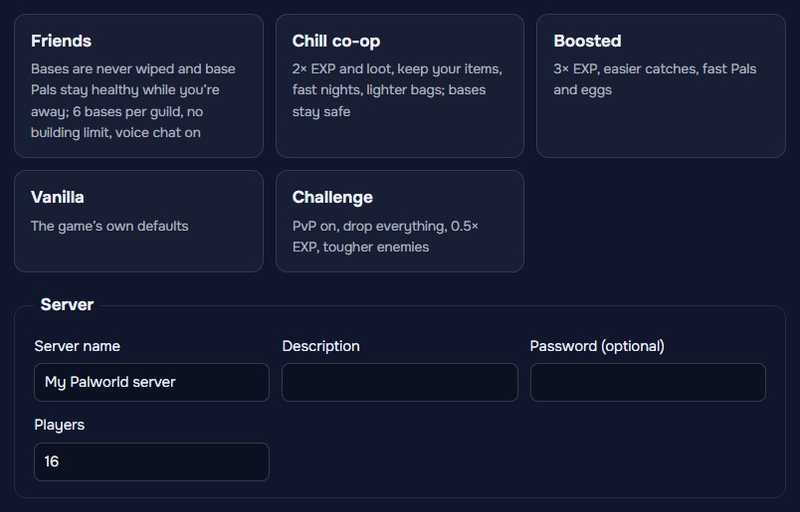
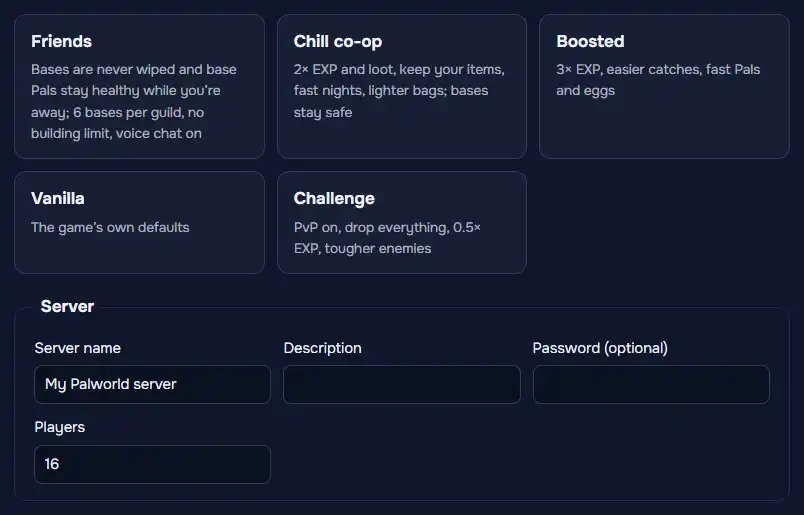
Pick Friends, Chill co-op, Boosted, Vanilla or Challenge. A preset puts the gameplay settings back to the game’s defaults, then applies its own. Your server name, password, players and the Performance & saving group stay as they are.
Then fill in the server name, description, password and players.
Step 2: Change any setting
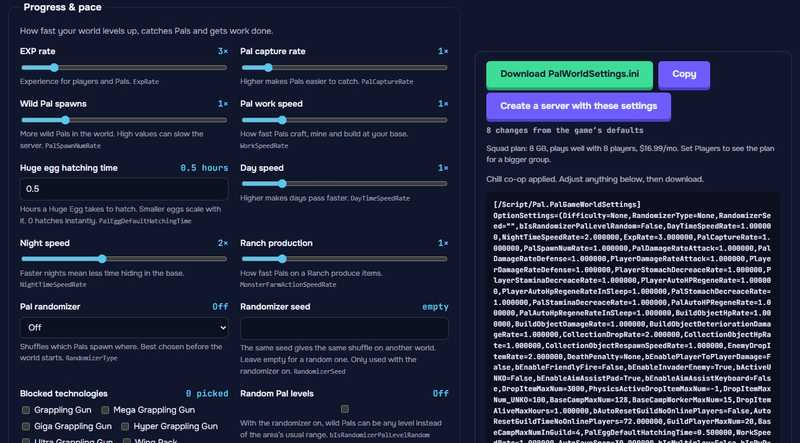
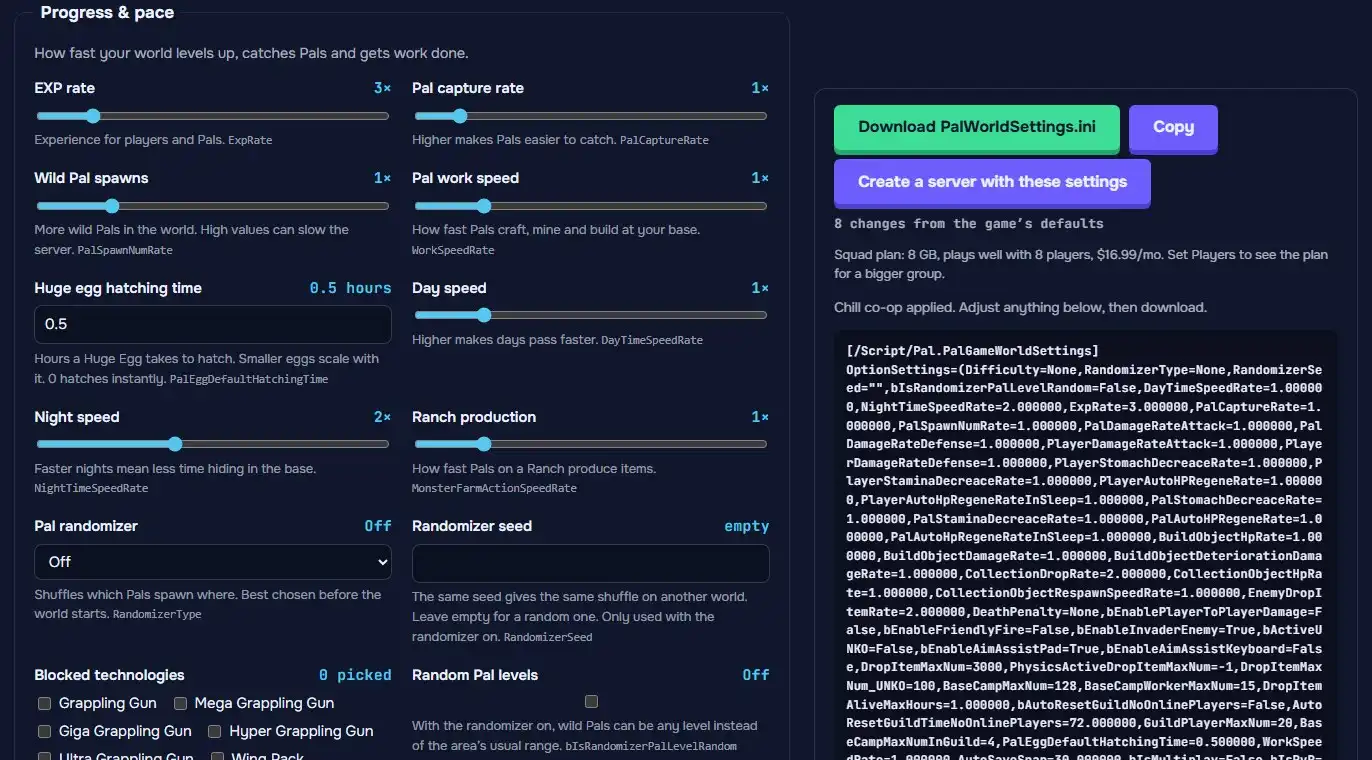
Settings are grouped: Progress & pace, Items & gathering, Survival & death, Combat & PvP, Bases & guilds, Players & social, and Performance & saving. Each one says in plain English what it does, with its key name from the file.
Rates also say what they mean in game: how long each egg size takes to hatch, how many spheres a catch takes, how long days and nights last in real minutes. Settings that change each other get a note by the file, like PvP turning on player damage, or wild spawns that need more memory for your player count.
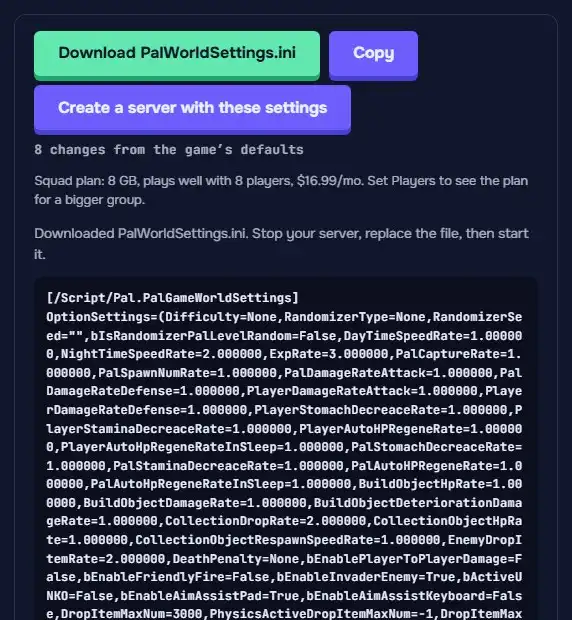
The file on the right updates as you go, with a count of the changes from the game’s defaults.
Step 3: Or import your own file
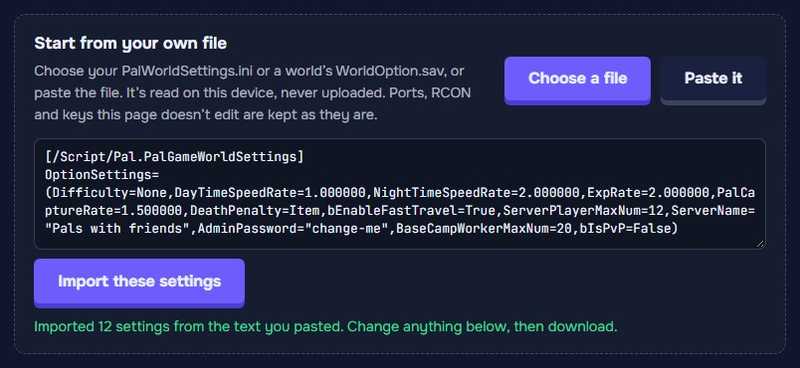
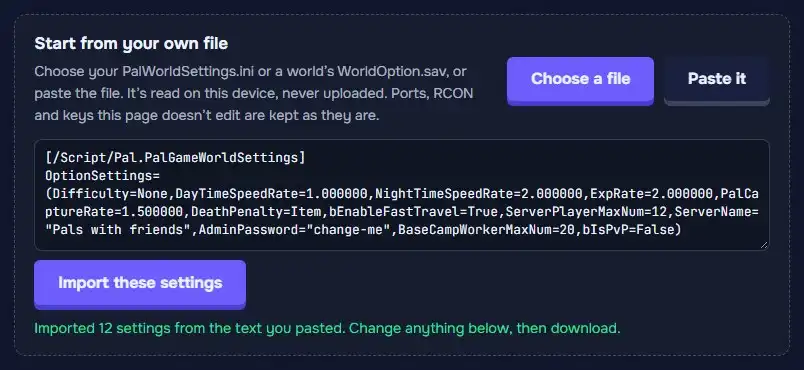
Already have a file? In Start from your own file, click Choose a file (your PalWorldSettings.ini, or a world’s WorldOption.sav), or Paste it and click Import these settings.
Ports, RCON and keys the page doesn’t edit are kept as they are, and problems Palworld would trip on are fixed in the new file.
Your file is read on your device, never uploaded.
Step 4: Download the file
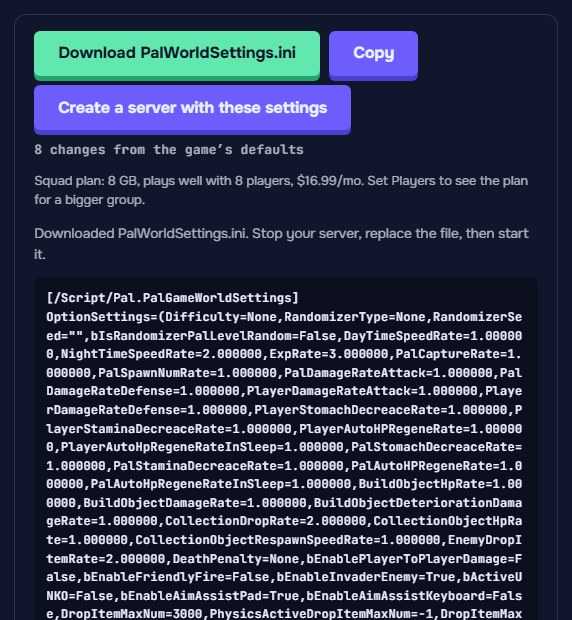
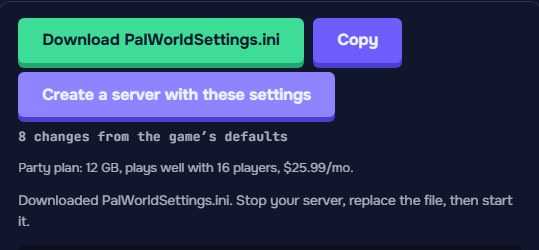
Click Download PalWorldSettings.ini, or Copy to paste it over your file.
For a co-op or single-player world, click Download WorldOption.sav instead: those worlds keep their settings in the world’s own WorldOption.sav. Keep a copy of the old one before you replace it. Don’t leave one in a dedicated server’s world folder: while it’s there, the server ignores PalWorldSettings.ini.
Stop your server before you replace the file, then start it: Palworld writes its settings back to the file when it stops, so changes made while it runs are lost.
Step 5: Put it in the right folder
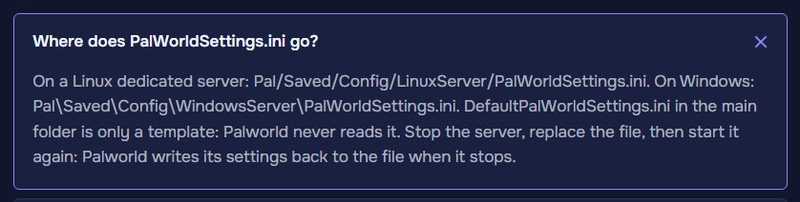
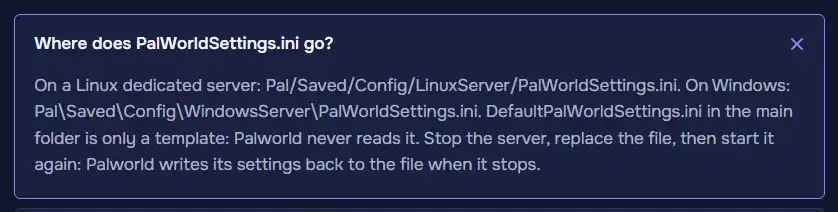
On a Linux dedicated server the file goes in
Pal/Saved/Config/LinuxServer/; on Windows inPal\Saved\Config\WindowsServer\. DefaultPalWorldSettings.ini in the main folder is only a template: Palworld never reads it.Settings still not applying? A WorldOption.sav in the world’s folder overrides the file. The settings checker finds it.
Step 6: Or create a server with these settings
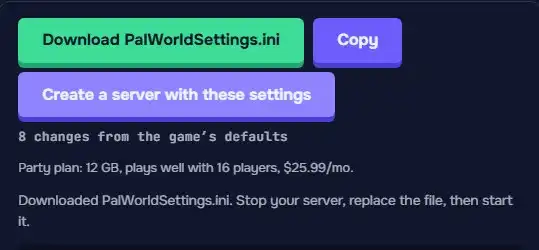
Create a server with these settings takes your changes to a new Game Hosting server. Once it’s set up, the panel offers to apply them. The line under the buttons shows the plan for the number of players you set.
That’s your settings file
Keep the file: import it here any time to change something, or check it with the settings checker if the server ignores it.
Open the server settings generator