Game Hosting guide
How to use the Palworld settings checker
When your Palworld server ignores PalWorldSettings.ini, the checker finds out why: line breaks, the wrong folder, typos, bad values or a WorldOption.sav that overrides the file. It explains each problem and gives you a fixed file.
- 4 steps
- Free, no account
- Runs in your browser
Step 1: Give it your file, or the whole server folder
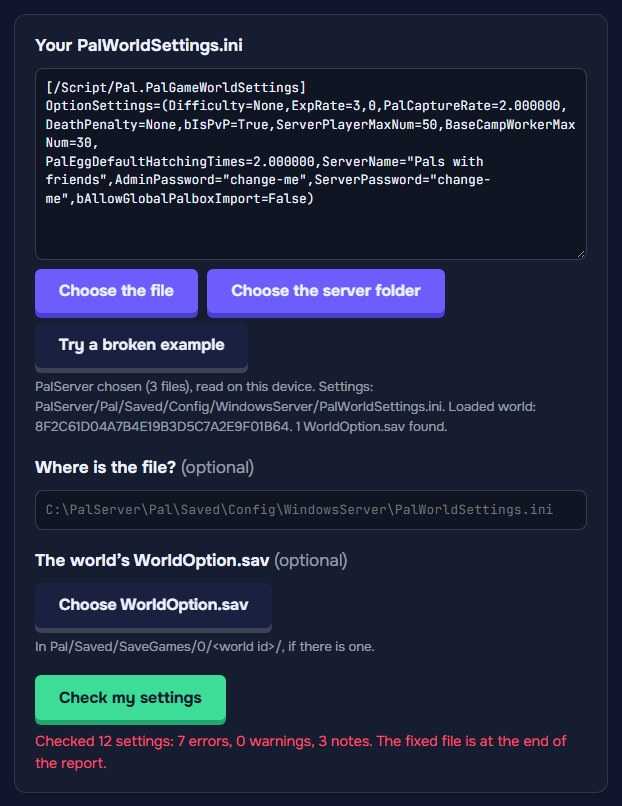
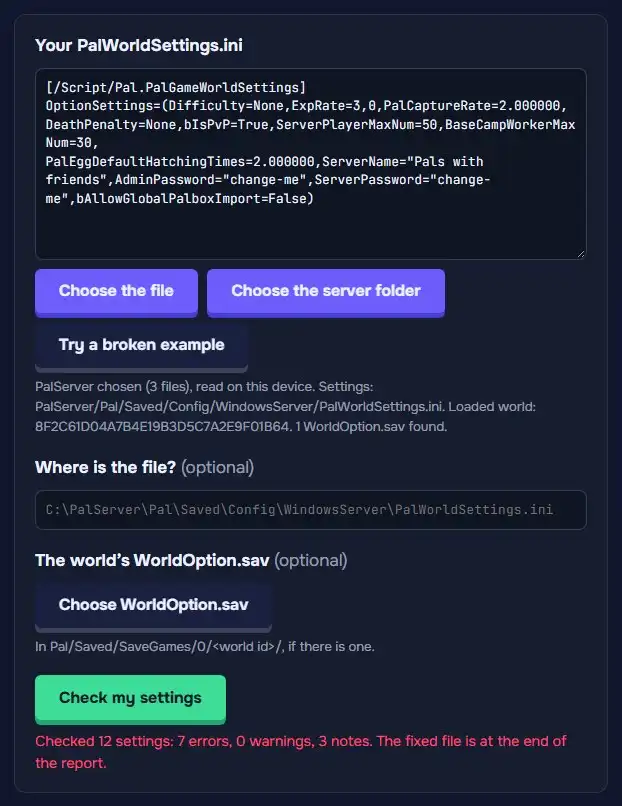
Paste your PalWorldSettings.ini, or click Choose the file. Better: Choose the server folder (PalServer, or its Pal/Saved). Then the checker also sees where the file is, which world the server loads and that world’s WorldOption.sav.
No file at hand? Try a broken example shows a full report.
Your browser may ask whether to “upload” the files. That is its word for letting the page read them: the save is read on your device and never leaves it.
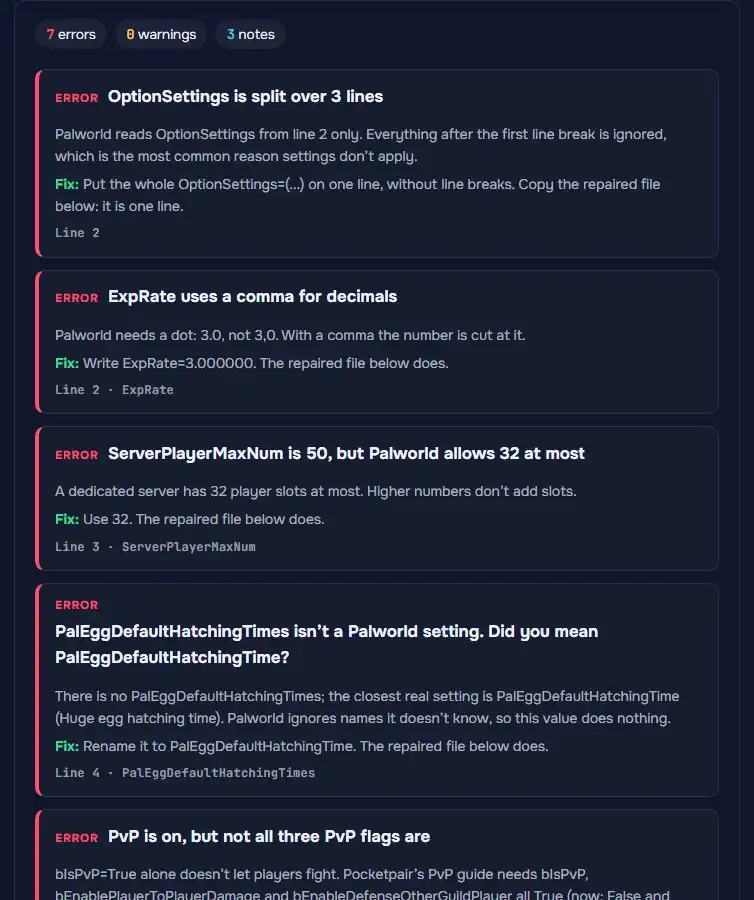
Step 2: Read the report
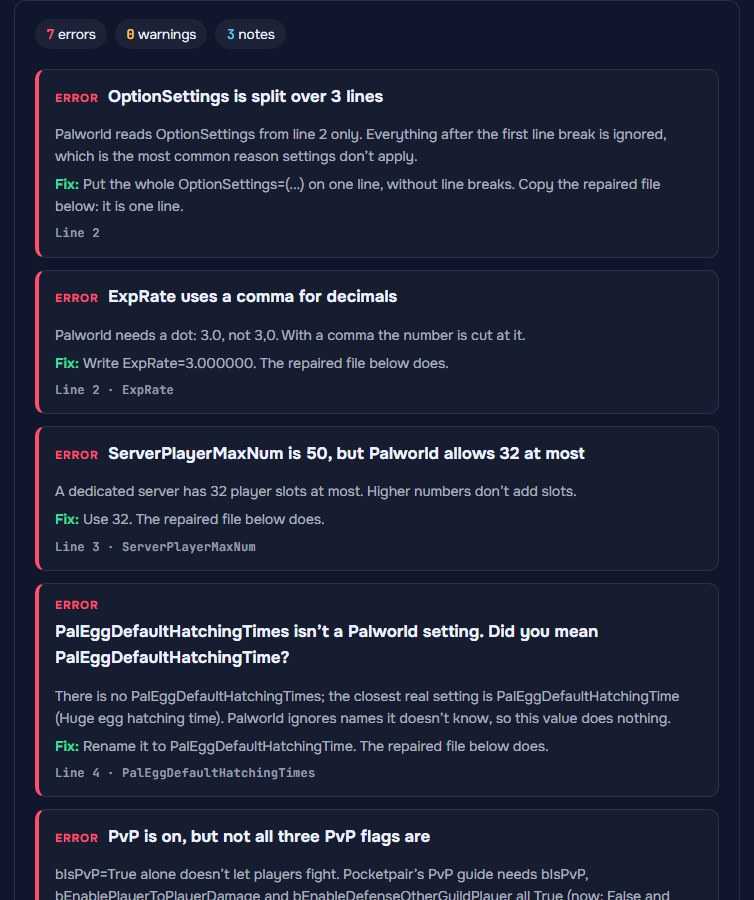
Errors come first, then warnings and notes. Each one says what’s wrong, why it matters, how to fix it and on which line.
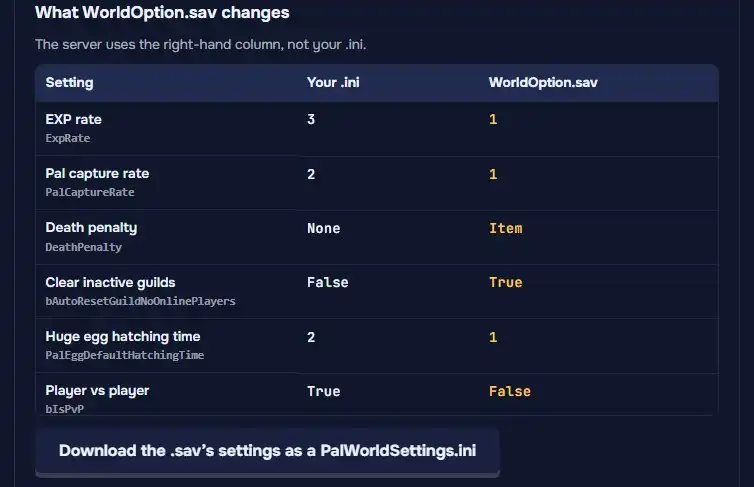
Step 3: Look for a WorldOption.sav
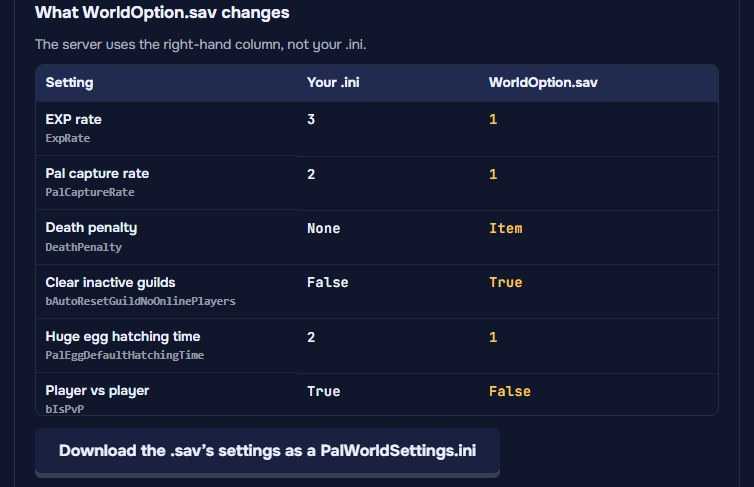
While a WorldOption.sav sits in the world’s folder, the server uses its settings, not your .ini. The table shows each setting it changes.
With the server stopped, move WorldOption.sav out of the world’s folder (keep a copy). To keep its settings, download them as a PalWorldSettings.ini first.
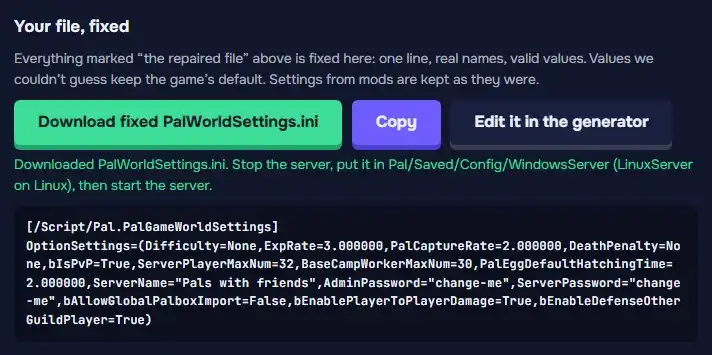
Step 4: Use the fixed file
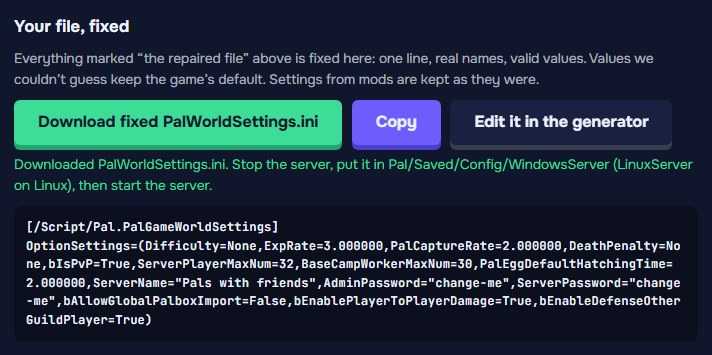
Your file, fixed has every problem the report marks “the repaired file” fixed. Download it or Copy it, stop the server, put it in
Pal/Saved/Config/WindowsServer(LinuxServer on Linux) and start the server.Edit it in the generator opens it in the settings generator to change more.
That’s the fix
Check again after any change: paste the new file or choose the folder, and the report should come back clean.
Open the settings checker